Discover and plan migration
Now let’s query the data from AWS Application Discovery Service and create a wave plan for the migration!
Verify Data Collector in AWS Migration Hub
1. From the AWS console you opened in step-1, switch to AWS Migration Hub service.
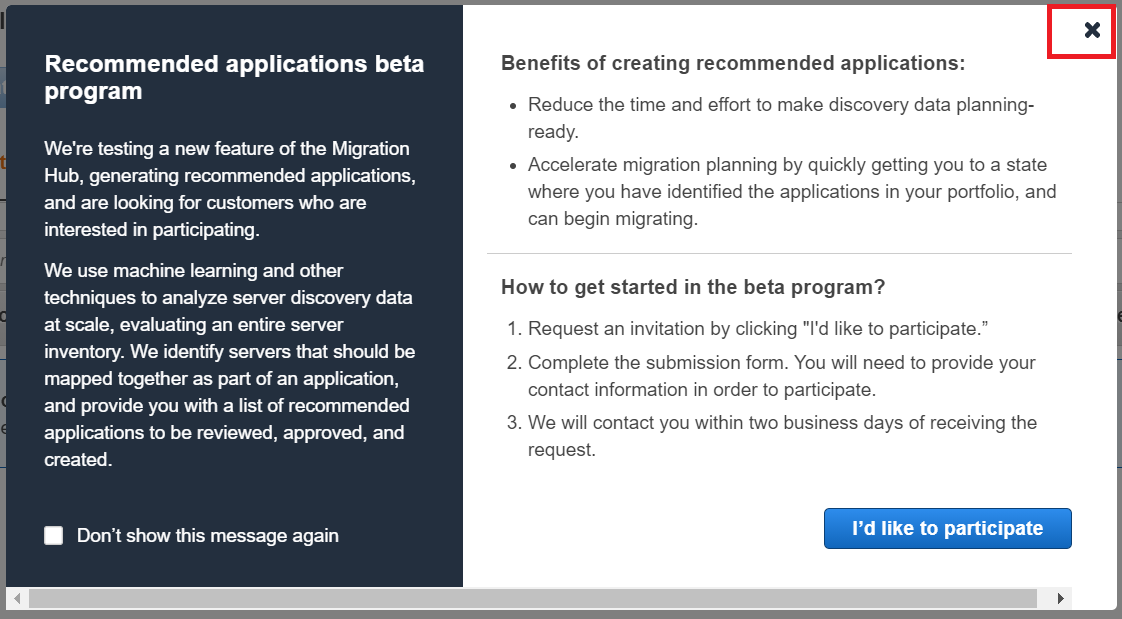
2. Under Discover, select Data Collectors. You will see the window Recommended applications beta program, close this pop up window.
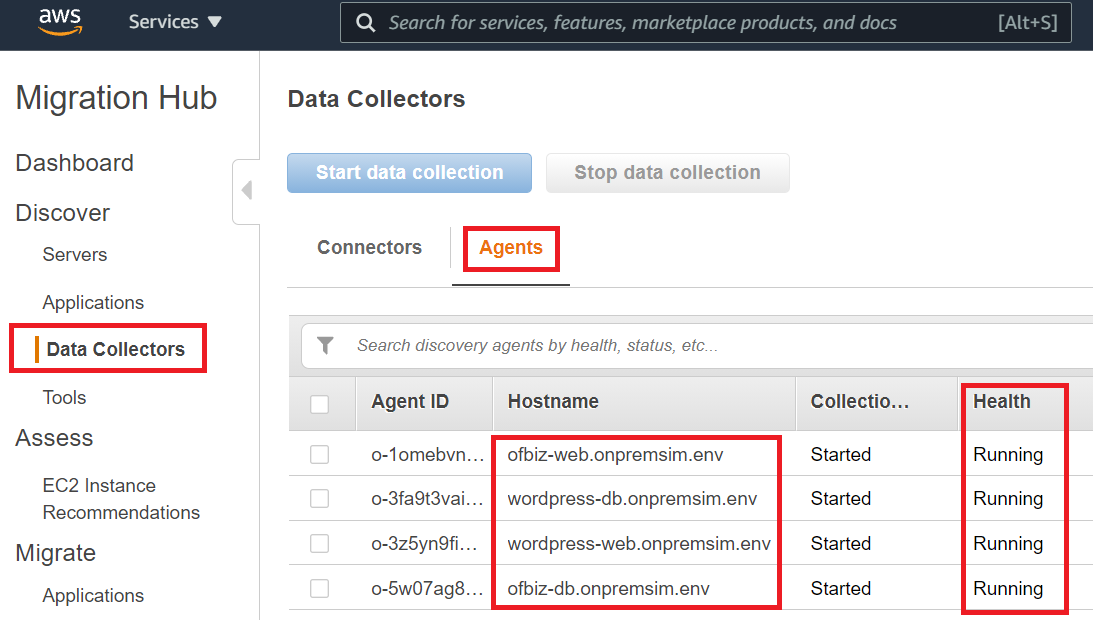
3. Select Agents tab on the right hand side. You should see all 4 servers, and the Heath status should be Running
Please let your AWS instructor know if you don’t see all 4 servers on the console. This is important for the rest of the lab.
Automate discover and plan
The following discovery.py automation script will run the predefined Athena query suggested in the following AWS documentation: https://docs.aws.amazon.com/application-discovery/latest/userguide/working-with-data-athena.html#predefined-queries
Step-1
Discover and Analyze data from AWS Application Discovery Service
1. Connect to the Bastion host as defined in the 1. Getting Started section
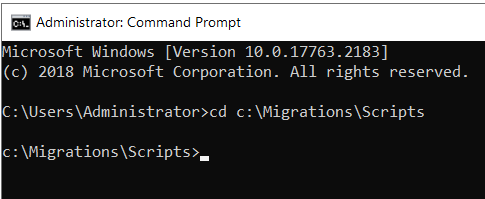
2. From the Bastion host, click start menu, search and open command prompt. Run the following command to switch to the c:\Migrations\Scripts directory.
cd c:\Migrations\Scripts
3. Run the following script to query data in Amazon Athena. You should see the output like the screenshot below.
discovery.py
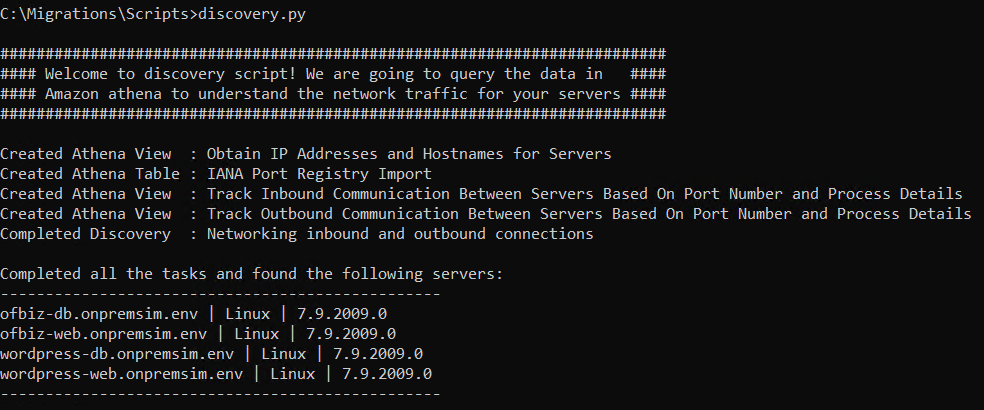
This script connects to Athena and extract the data discovered by AWS Application Discovery Services (ADS). It discovers all the servers and network communication where ADS agents are installed. The information extracted will be used to create security groups for the target environment. The list of discovered servers will be used to build the wave plan for the migration factory.
Step-2
Create target security groups
1. On the same command prompt, run the following script to create security groups. Enter VPCTarget Id with VPCTarget value from your Event Engine dashboard.
create-securitygroup.py
You can get the VPCTarget value from Event Engine dashboard
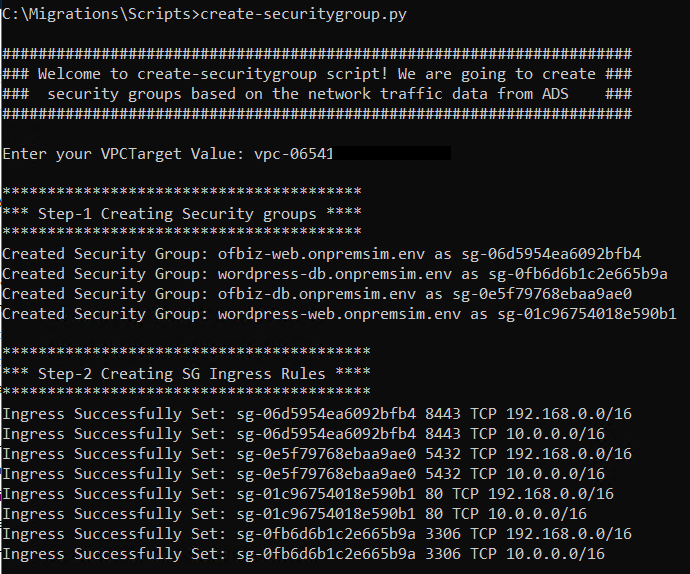
For this lab, please make sure four security groups and eight Ingres rules are created successfully
For this lab, above script create 4 security groups, 1 for each discovered server. For each discovered network connection, 2 inbound rules added to allow CIDRs 192.168.0.0/16 & 10.0.0.0/16 to connect to this environment. On the Target VPC, these CIDRs are in a private network without inbound Internet access. As you create your own migration factory automation, please review the security group documentation.
Step-3
Create a wave plan for migration factory to automate migration
1. On the same command prompt, run the following script to create intake form. Enter VPCTarget Id with VPCTarget value from your Event Engine dashboard. You will see the intake form updated in c:\Migrations\Scripts\0-intake-form.csv
create-intakeform.py
You can get the VPCTarget value from Event Engine dashboard
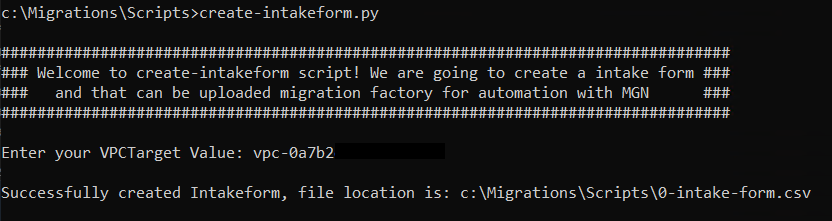
This command creates an intake form that works as an input to the AWS Migration Factory. The intake form contains the information such as: AWS account number, Region, EC2 instance type, EC2 instance size, Subnet and Security Group which are needed to define the EC2 launch templates. This information has just been automatically placed by using the scripts executed on this page, by consolidating the information discovered in ADS and matching naming conventions and tags that have been setup in the target landing zone.